Creating similar invoices just got a whole lot faster. Introducing Invoice Copy - a simple way to duplicate any existing invoice and use it as a starting point for a new one.
Why You'll Love This
Stop re-entering the same information. If you invoice the same client regularly or create similar invoices for different customers, copying saves you minutes on every bill.
What gets copied:
- All line items with descriptions, quantities, and prices
- Company and client details
- Payment terms and method
- Currency and language settings
- Labels you've assigned
What gets reset:
- Invoice number (auto-generated fresh)
- Dates (set to today)
- Status (starts as draft)
How to Copy an Invoice
Step 1: Find Your Invoice
Go to your Invoices page and find the invoice you want to copy.
Step 2: Click the Copy Button
Look for the copy icon (two overlapping squares) in the actions column on the right side of the invoice row.
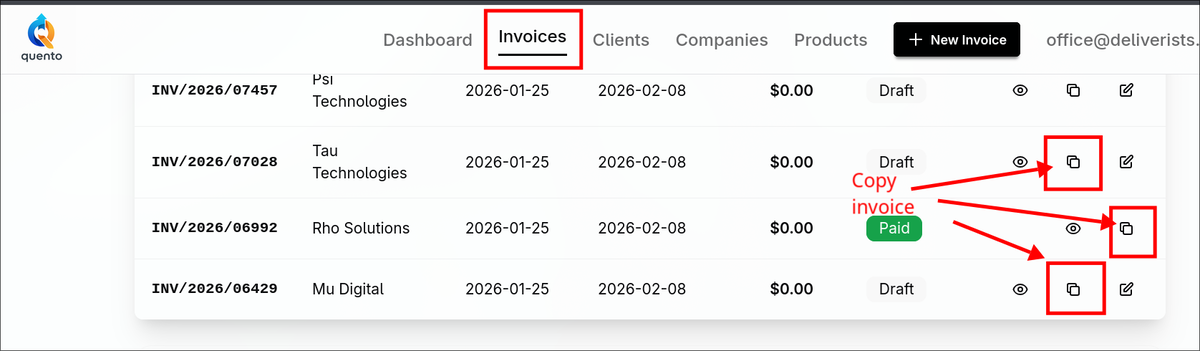
Note: The copy button appears for draft, issued, and paid invoices. Cancelled or overdue invoices can't be copied.
Step 3: Edit and Save
You'll land on the New Invoice page with everything pre-filled:
- All line items from the original invoice
- Same client and company selected
- Matching payment terms and currency
- Your labels preserved
Make your changes - adjust quantities, update prices, add or remove items - then save as draft or issue immediately.
Perfect For
Recurring Clients
Invoice the same customer weekly or monthly? Copy last month's invoice, update the dates, and send. Done in seconds.
Similar Jobs
Do you offer the same services to different clients? Create one "template" invoice with your standard services, then copy and customize for each customer.
Retainers and Packages
Have set service packages? Build them once, copy as needed, adjust only what's different.
Error Corrections
Need to re-issue a similar invoice with corrections? Copy the original, fix what needs changing, and send the new version.
What Stays and What Changes
Copied to the New Invoice
| Field | What Gets Copied |
|---|---|
| All line items | Products, quantities, unit prices, VAT rates, positions |
| Client & company | All billing details, addresses, tax numbers |
| Payment terms | Number of days for due date calculation |
| Currency | PLN, EUR, USD, or other selected currency |
| Payment method | Transfer, cash, card, or other method |
| Labels | All tags and categories assigned to invoice |
| Notes | Public notes for client and internal notes |
Reset for the New Invoice
| Field | What Happens |
|---|---|
| Invoice number | Auto-generated when you issue the invoice |
| Issue date | Left blank — set automatically when issued |
| Sale date | Reset to today's date |
| Due date | Calculated from payment terms after issue |
| Status | Always starts as draft (ready to edit) |
| Paid date | Left blank — no payment recorded |
| KSeF reference | Blank — for Polish e-invoicing system |
Tips for Best Results
Create "Template" Invoices
Set up draft invoices for your most common service combinations. Don't issue them - just keep them as templates to copy whenever needed.
Copy from Your Best Examples
Have a particularly well-structured invoice? Use it as your base for future bills to maintain consistency.
Combine with Labels
Add labels like "monthly-template" or "package-a" to invoices you copy often. They'll be preserved when copying, helping you stay organized.
FAQ
"Can I copy any invoice?"
You can copy draft, issued, and paid invoices. Cancelled and overdue invoices cannot be copied.
"Does copying affect the original invoice?"
No - the original stays exactly as it was. You're creating a brand new invoice that starts as a duplicate.
"Can I copy an invoice from a different client to use for another?"
Yes! The copy keeps the original client selected, but you can easily change it before saving.
"Do copied invoices keep their history or payments?"
No - the new invoice starts fresh with no payment history, email records, or KSeF submissions.
"Is there a limit to how many times I can copy an invoice?"
Copy as many times as you need. Each copy is a completely independent new invoice.
Ready to Save Time?
Next time you need to create a similar invoice, skip the manual entry. Just hit that copy button and start from a solid foundation.
Head to your invoices page and look for the copy icon on any draft, issued, or paid invoice.
Have questions or feedback about this feature? Email us at support@quento.app - we read every message.
— The Quento Team